Parcely app and shipping methods setup might seem complicated when doing it for the first time. For that reason, we offer a free app and shipping-method setup service to all Parcely users.
Reach out to us at support@parcely.app and we will set everything up for you.
Important decision!
Parcely offers 2 different ways for store clients to select a parcel locker location. Selection can be either on the cart page or at checkout. Both ways have their pros and cons. The setup steps also differ slightly.
1. Parcel locker selection on the cart page.
Pros and cons:
+ Works with all Shopify plans, including Basic. Doesn't require the Shopify CCS feature.
+ Included in all Parcely plans.
+ Client can choose an exact parcel locker from a dropdown list or from a map.
+ The selected locker data saves to the Shopify order and is used to generate a shipping label.
- All customers must pass through the cart page. Shipping selection can not be added to the Drawer cart.
- All buttons that direct customers directly to the checkout need to be hidden, as all clients must pass through the cart page to select a pick-up point location.
- Quick payment options need to be hidden before checkout.
OR
2. Nearest parcel locker selection to the client's shipping address at checkout.
Pros and cons:
+ Parcel locker selection is at the checkout and it works with all native Shopify features.
+ You can use the theme drawer cart or apps that add drawer cart features.
+ Buttons on a product page may direct clients directly to the checkout.
+ Works with headless frontends like Hydrogen and Lovable.
+ The selected locker data saves to the Shopify order and generates a shipping label.
- Needs Shopify CCS feature to work, which means that you have to be using at minimum the Shopify Grow yearly plan. Read more about Shopify CCS here.
- Included only in the Parcely Unlimited plan.
- Client will see only the closest parcel locker locations to the inserted shipping address. You can't show a map or the full dropdown list at checkout like on the cart page.
Please make sure you are reading the right setup steps based on whether you want to show parcel locker selection on the cart page or at checkout.
Step-by-step guide to set Parcely shipping selection on the Cart page
- Install the app in your store from the Shopify App Store: https://apps.shopify.com/parcelyapp
- Select a Parcely app plan based on how many shipping methods you'll use in your store. Keep in mind that shipping methods are counted by shipping service provider and country (the same service provider's parcel locker shipping method counts as 3 times if you activate it in 3 countries).
- Select all needed shipping methods (you can select/change them later) and click Approve charge.
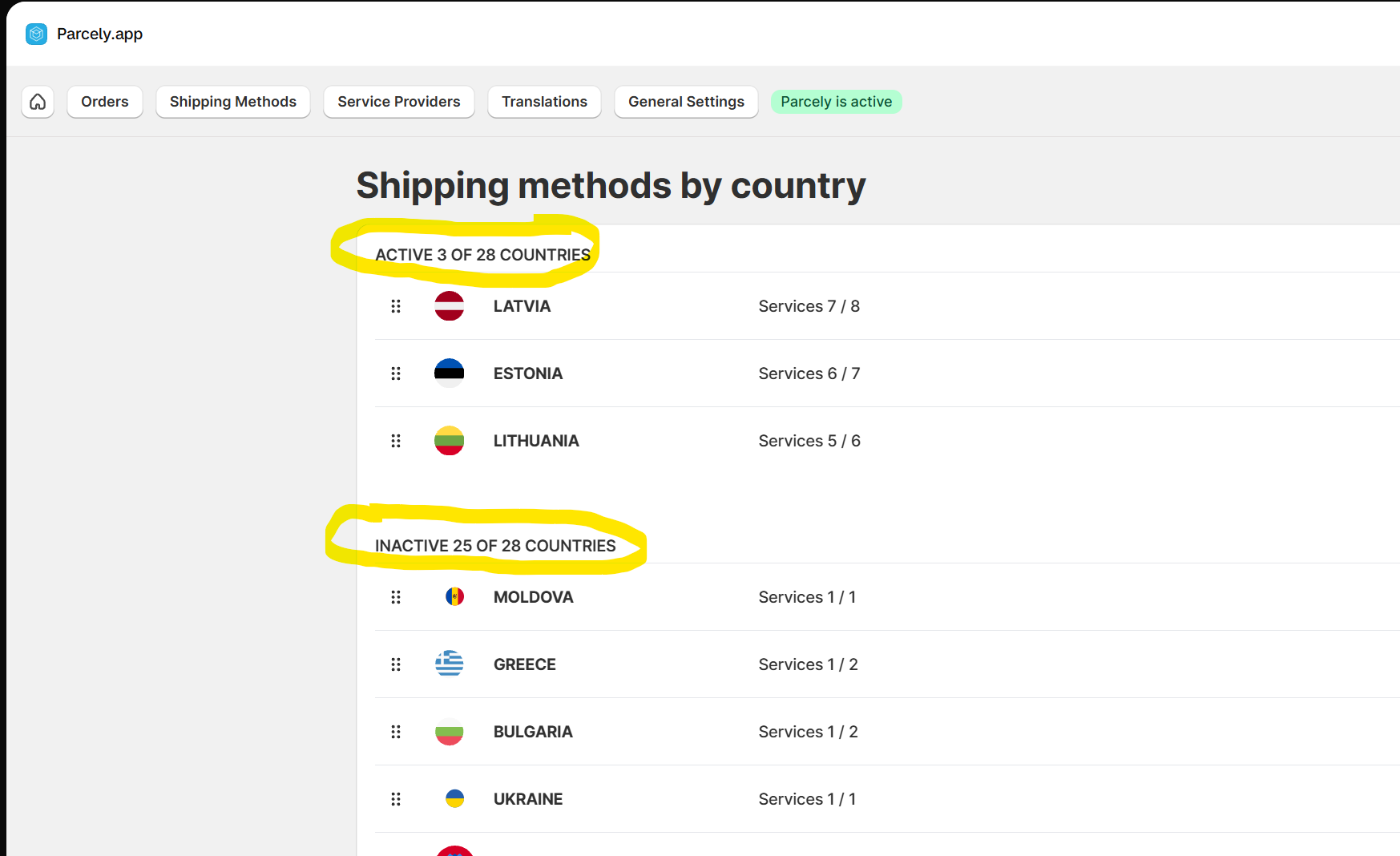
- Make sure the needed shipping methods and countries are activated under the Shipping Methods tab.
- Open your store Shipping Profile under the store Settings→Shipping and delivery→General shipping rates and add the needed shipping rates.
Shipping rates should look something like this in the end (depending on your shipping rates, methods and destination countries).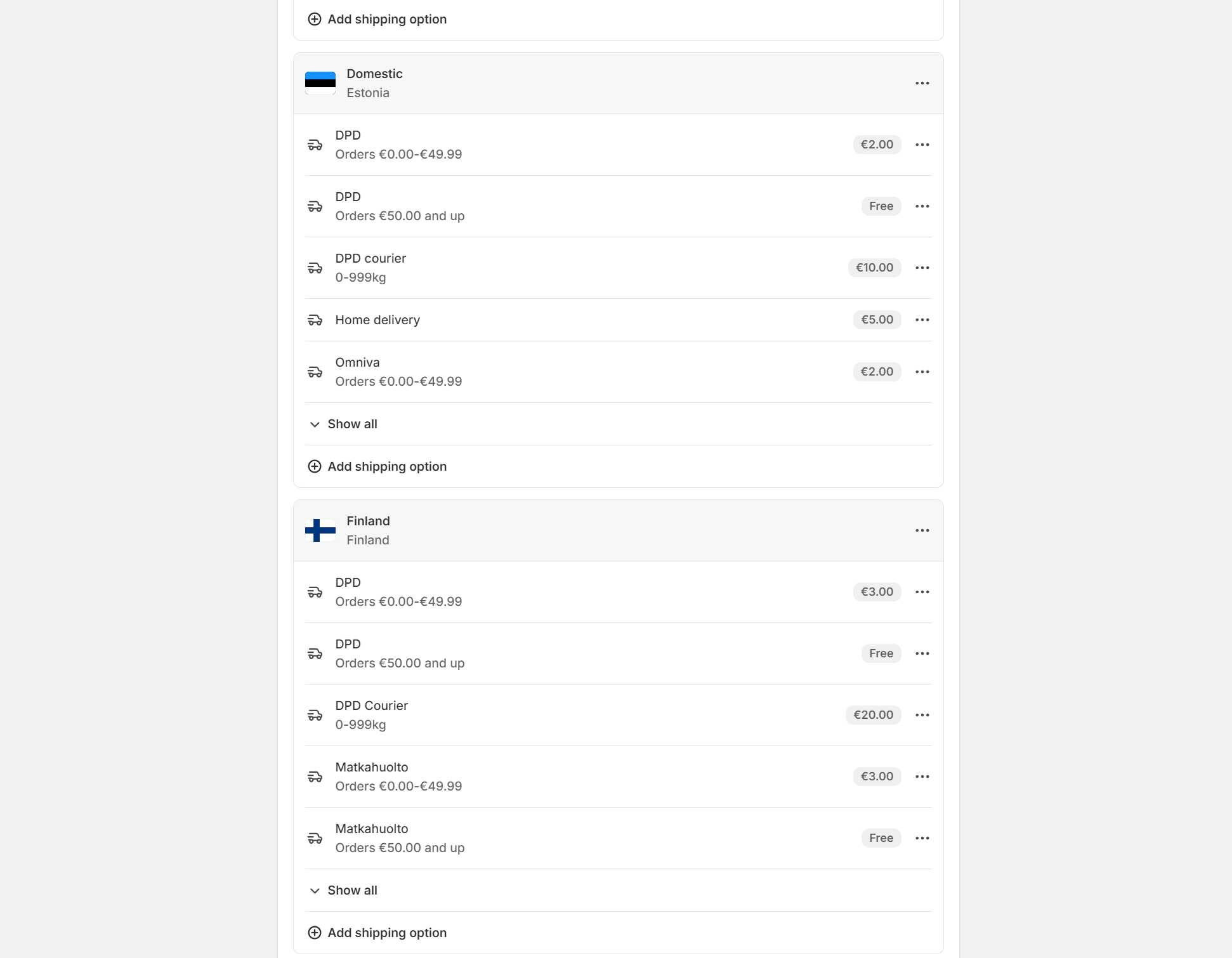
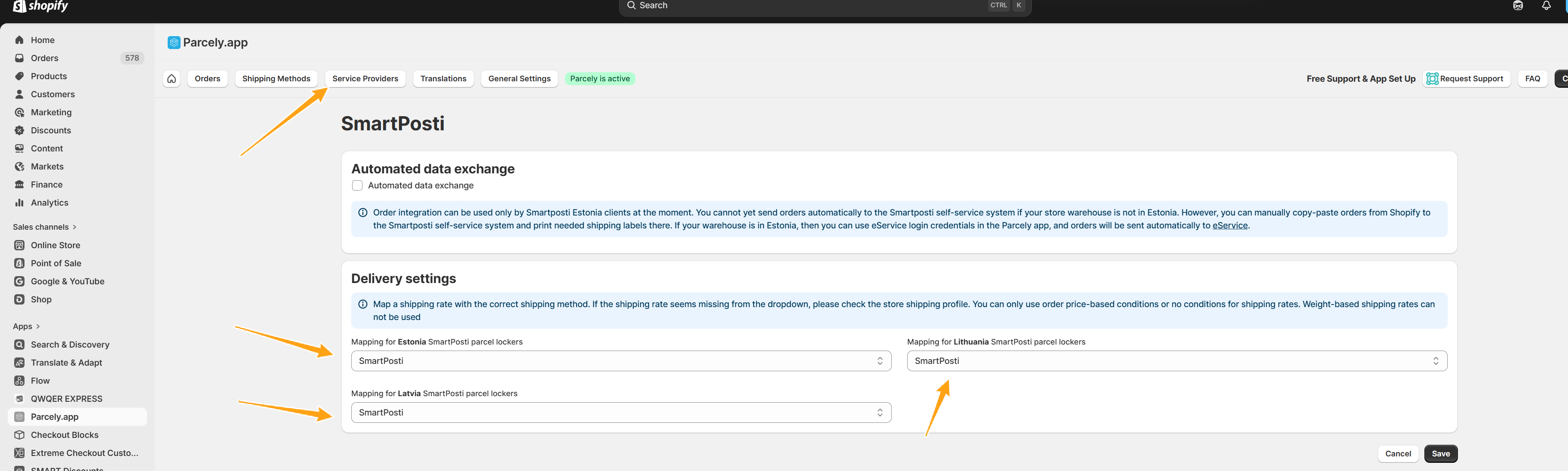
- After adding all shipping rates to the store, move to the Parcely Service Providers tab and connect the Shopify shipping rate with the Parcely shipping method, like this
Common issues:
* If you don't see any selections under Delivery settings. For example, the SmartPosti Latvia selection is empty, which means that you haven't added a shipping rate for Latvia yet. You would need to return to the store shipping profile and add a shipping rate.
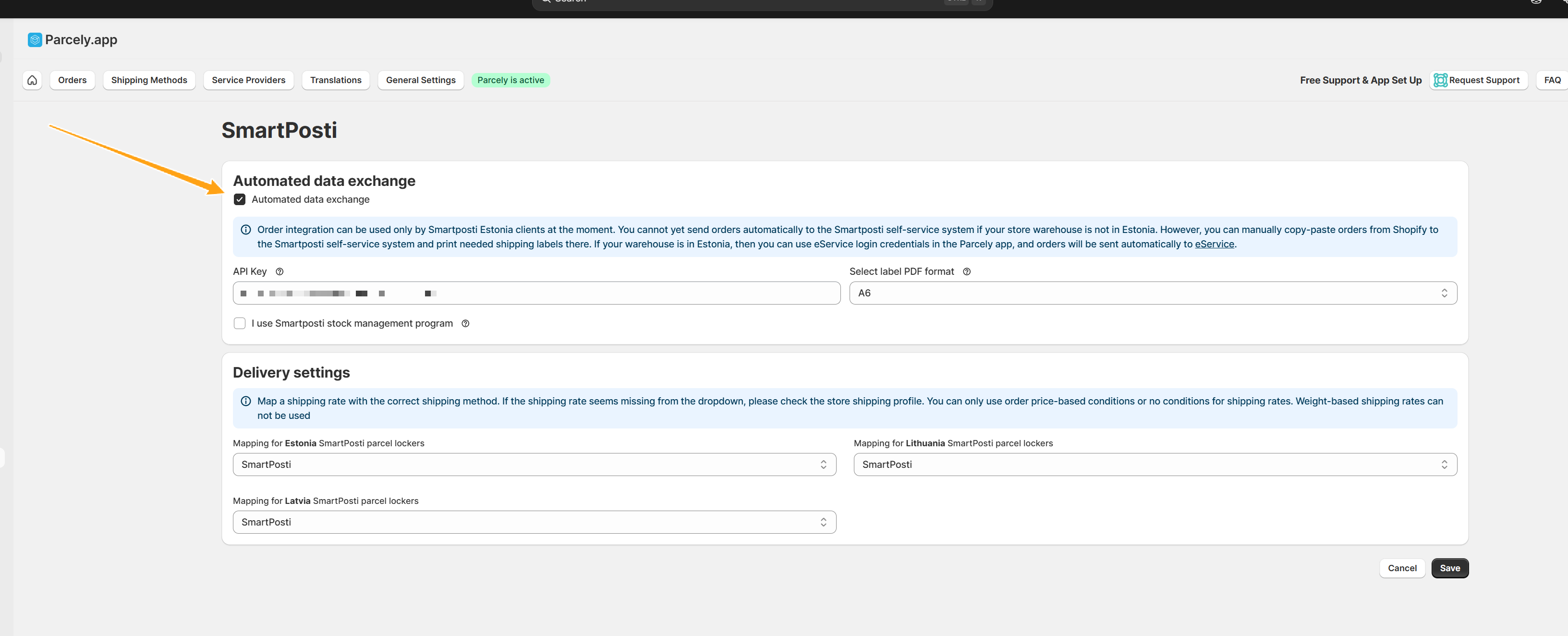
* If the shipping method is grayed out, it means the shipping method is not activated or selected yet. Check the shipping method under the Shipping Methods tab. - Activate the shipping service provider API by selecting "Automated data exchange" and filling in all API setting fields. (You can skip this step if you are not planning to export orders to the service provider system or if you are using Montonio Shipping)
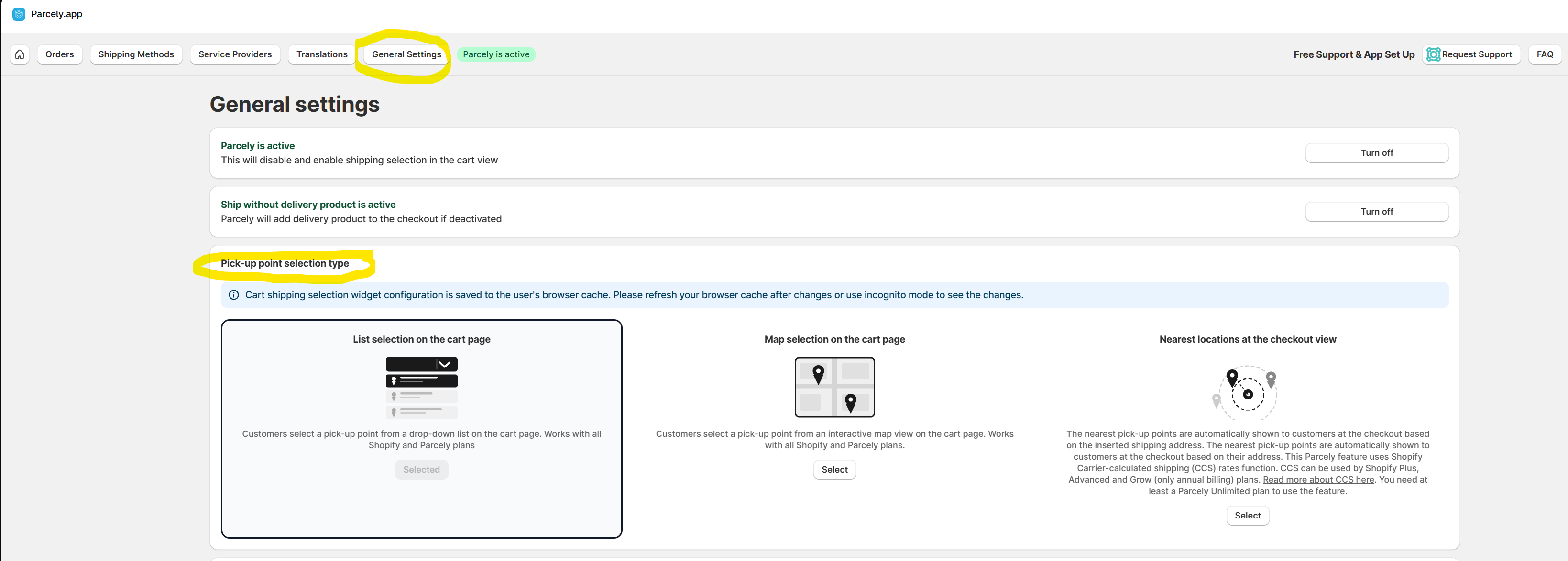
- Choose whether you want to use the List or Map pick-up point selection widget in the Cart page under the app General Settings tab
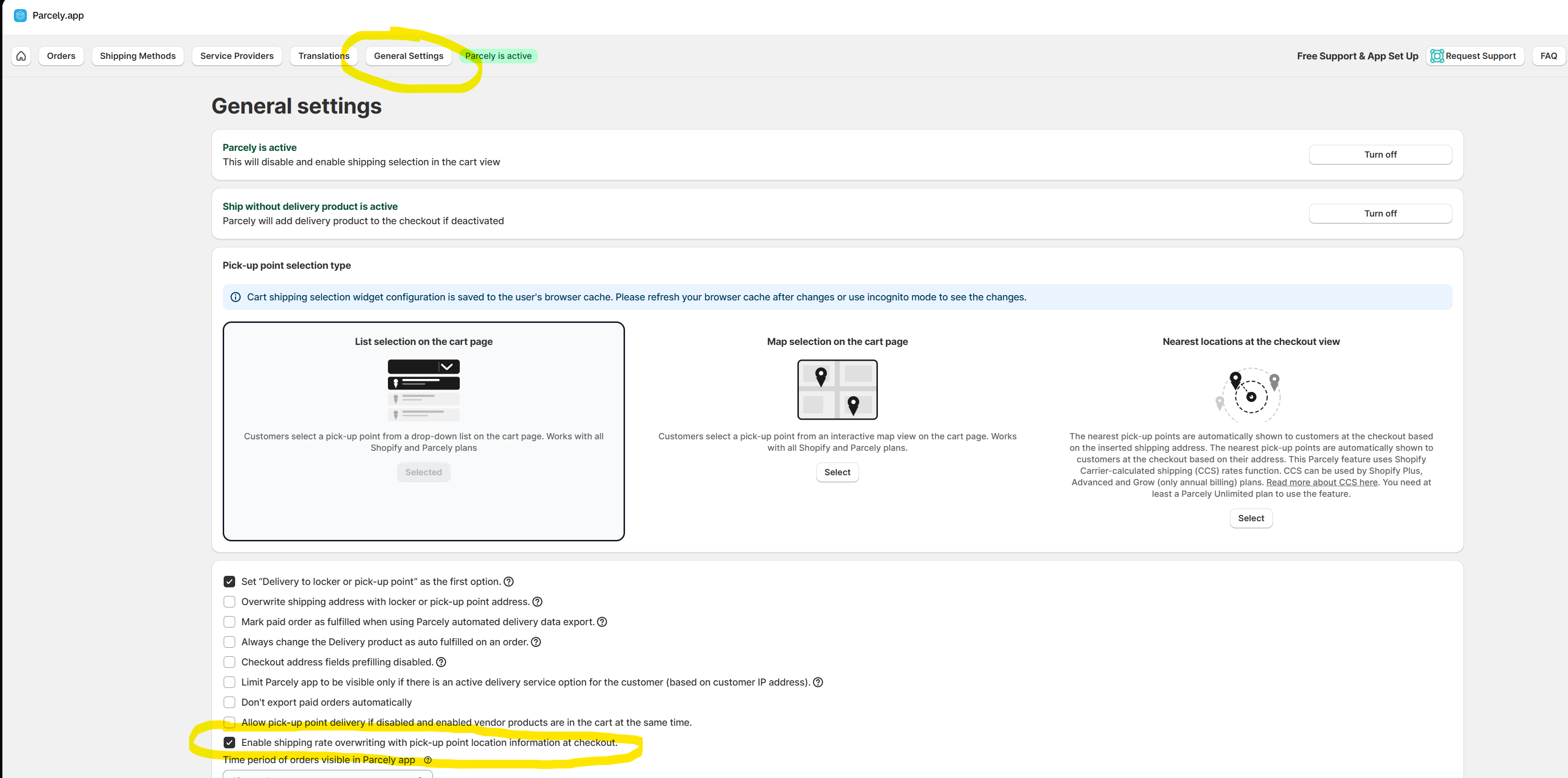
- To show the pick-up point location data at checkout that the customer selected on the Cart page, select the following setting.
- Add additional shipping method selections to the Parcely widget if they are needed (for example, courier or self pick-up point selections). Additional shipping methods don't need mapping, like parcel locker shipping methods under point 6.
When the client selects an additional shipping option, she will see all shipping rates in checkout that aren't mapped to a parcel locker shipping method.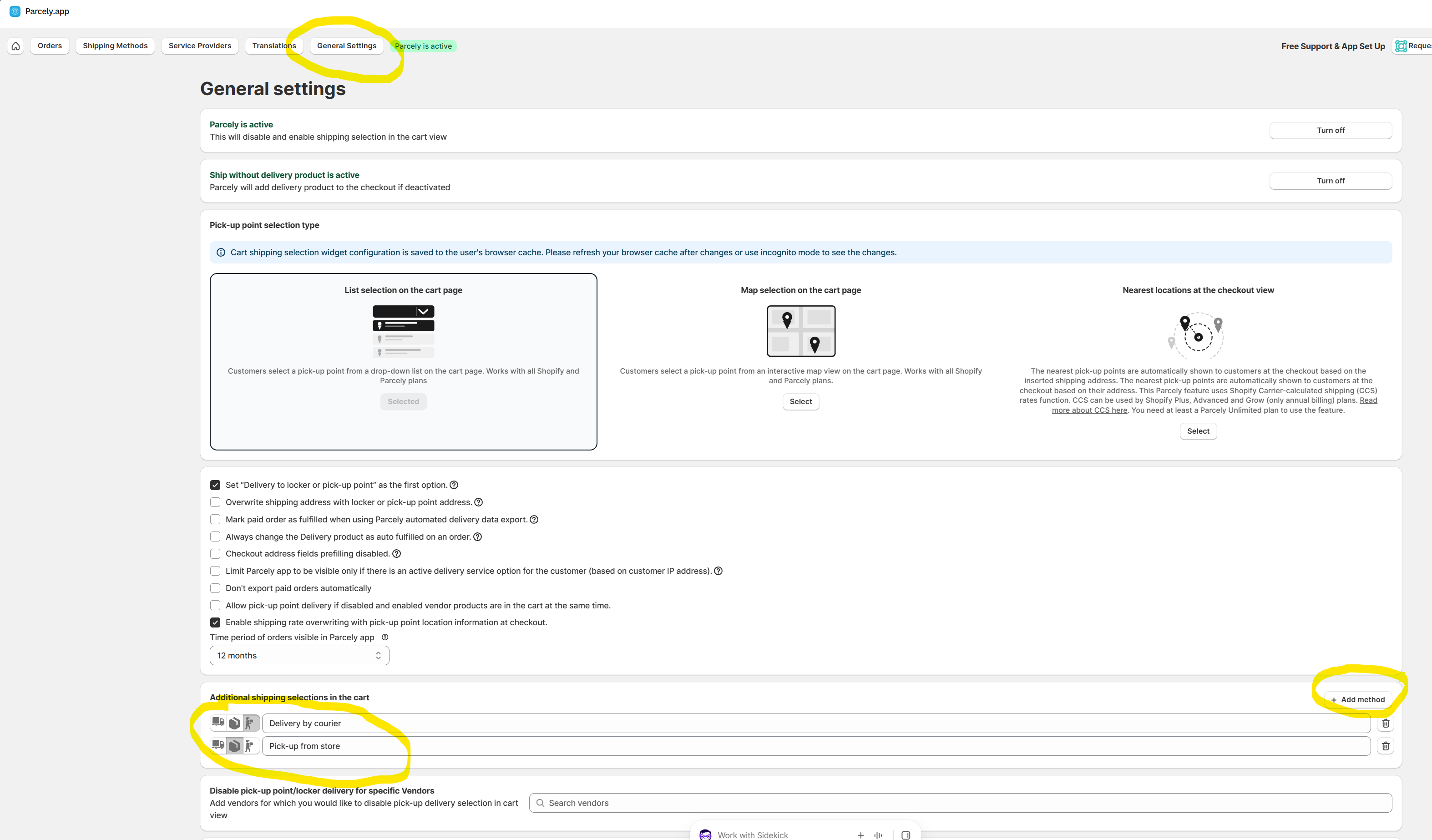
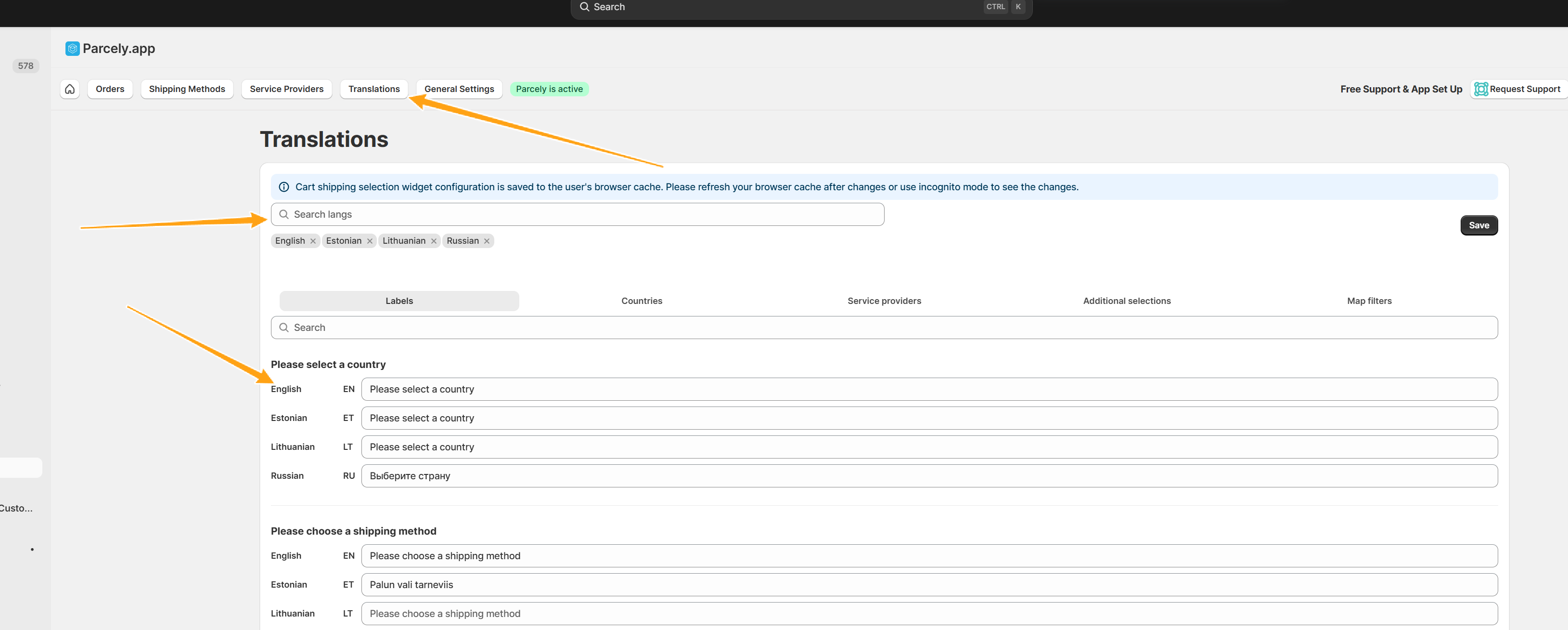
- Add translations to the widget under the app Translations tab if needed. You can also change default texts under the Translations tab and write shipping rates into texts to show them on the cart page.
- Activate the Parcely widget theme block on your store template cart page.
Go to the store theme and click Edit Theme. Select Cart Page from the dropdown on the header (in the middle).
This image is from the Shopify Dawn theme: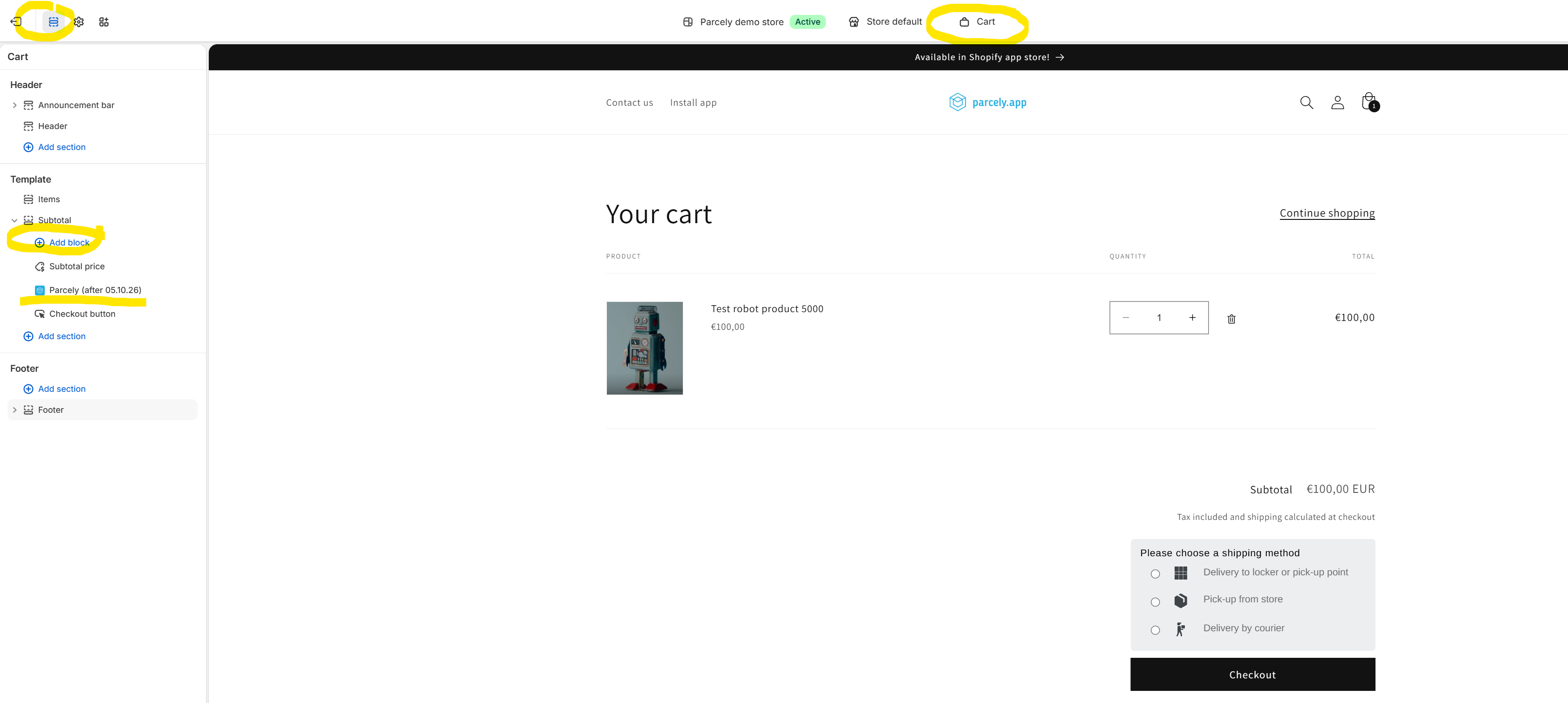
If your theme doesn't have the correct section blocks to move the widget to the desired place, you can move it in the theme code with a widget anchor.
Here's an example with the Horizon theme.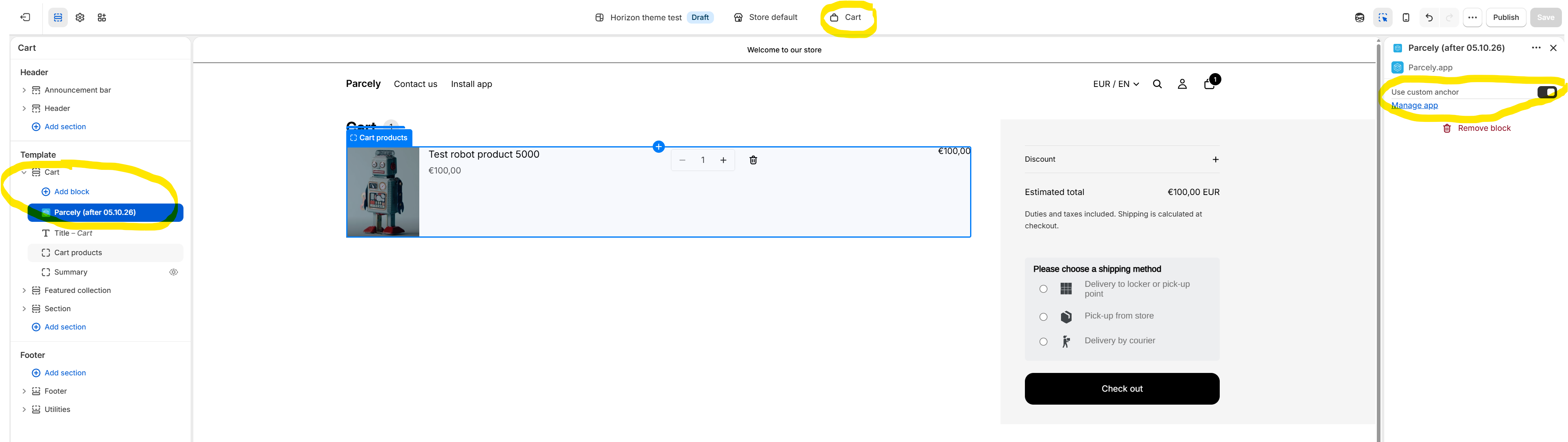 Anchor location in the cart summary file (Snippets→cart-summary.liquid)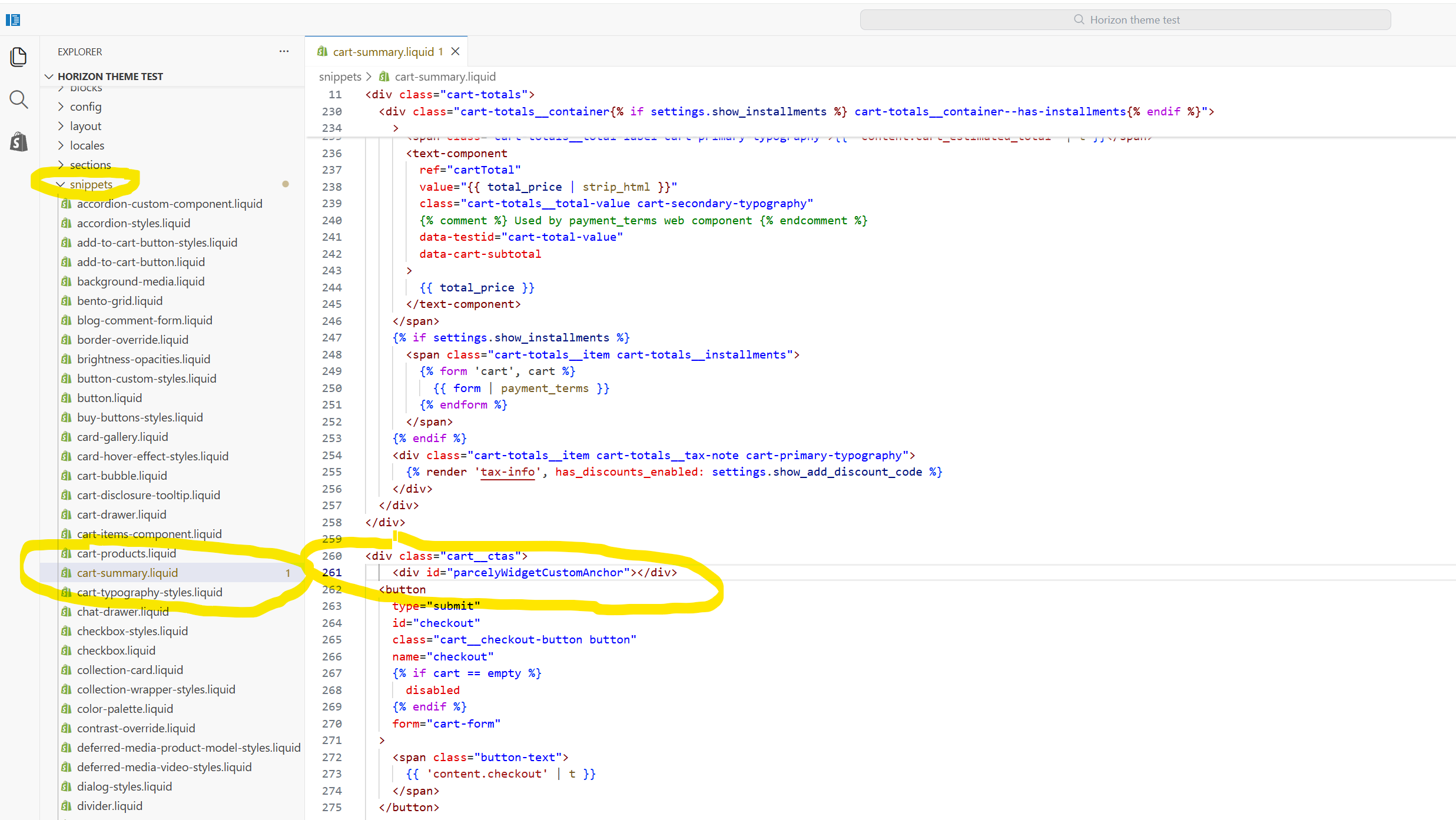
Shopify themes are a little different, but widget placement will be easy for your Shopify store developer. If you don't have a developer and don't feel confident making the needed changes, reach out to our support, and we'll make the changes for you.
Reach out to our support if you are using a very old theme that does not support theme sections and we will help you. - Activate Parcely Checkout button delay
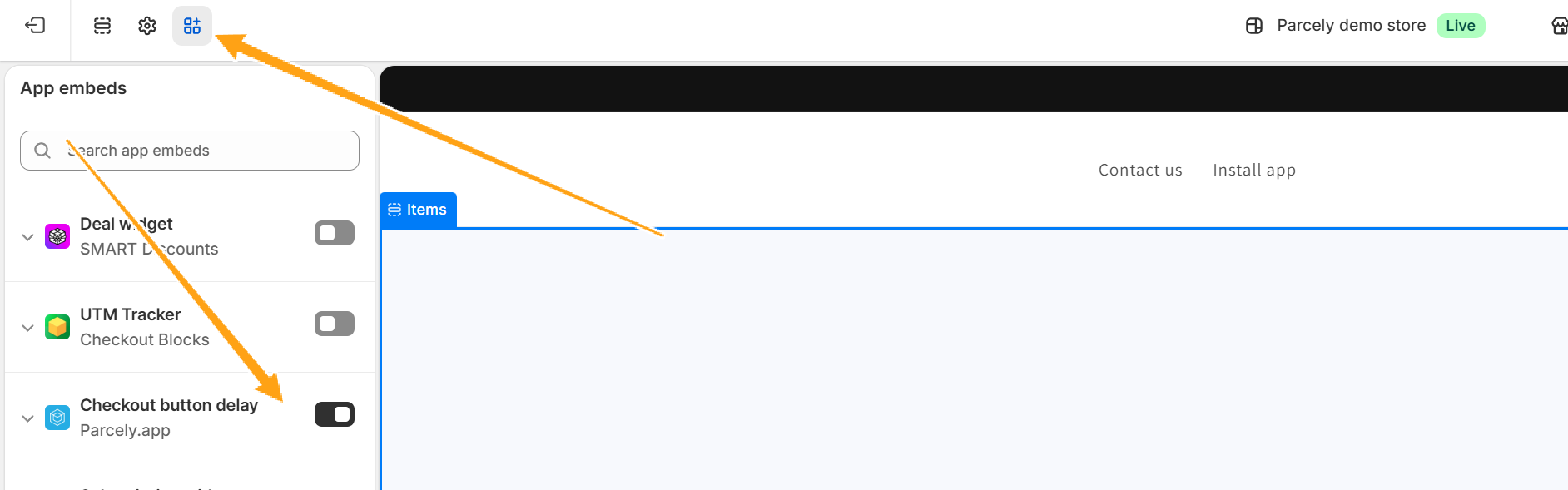
This will ensure customers don't go to checkout before selecting a shipping method. - Hide all buttons that take customers directly to checkout without going through the cart page first. For example, quick checkout buttons on the product page.
- Disable the cart drawer or modify its buttons so customers are directed to the cart page from the drawer, not directly to checkout.
- Hide quick buy buttons on the cart page.
Test all shipping methods through and make sure they work correctly.
Cart page shipping selection setup video guide with comments
Shipping methods and their rates have many nuances, and it's almost impossible to cover them all in a step-by-step guide, since every store's business is a little different.
Please reach out to us for a free setup, or at least to double-check your settings before customers start placing real orders.
Step-by-step guide to set the nearest parcel locker selection in the checkout
Make sure your Shopify store has the mandatory CCS feature enabled. You need at least a Shopify Grow Yearly plan for CCS to be active by default. You can also ask Shopify Support to activate CCS on the Grow Monthly plan for an extra fee. Read more about CCS here.
If you have the Shopify Basic plan and don't want to start using Grow, then please follow the Cart page shipping selection steps.
- Install the app in your store from the Shopify App Store: https://apps.shopify.com/parcelyapp
- Select a Parcely app Unlimited plan.
- Select all needed shipping methods (you can select/change them later) and click Approve charge.
- Make sure the needed shipping methods and countries are activated under the Shipping Methods tab.
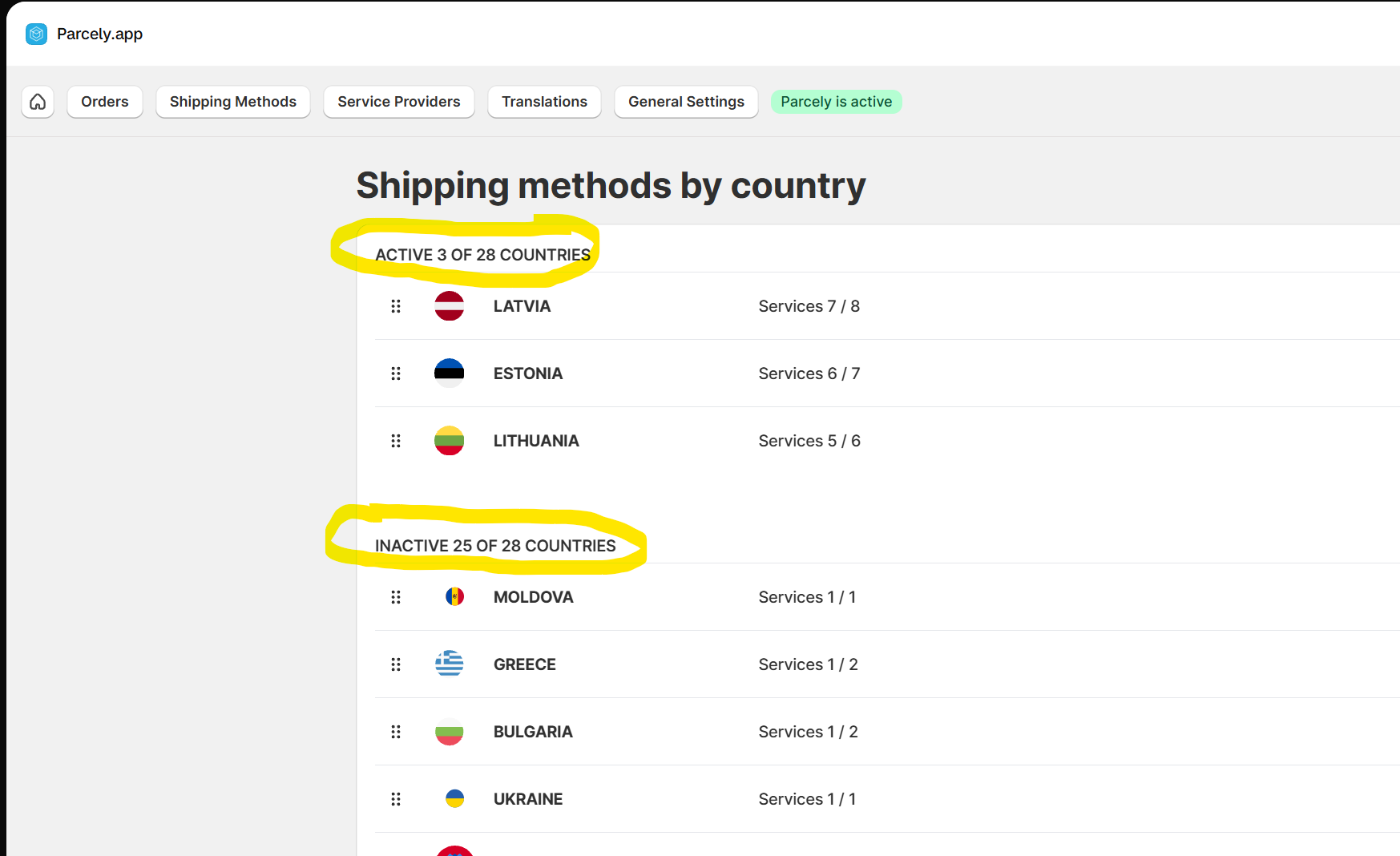
- Add parcel locker shipping rates to each shipping provider in the Parcely app under the Service Providers tab.
- Add a fixed shipping rate per country for each shipping method
- Select how many nearest locations you would like to show to the customer in the checkout for this shipping method.
- Add a free shipping condition/order sum if needed.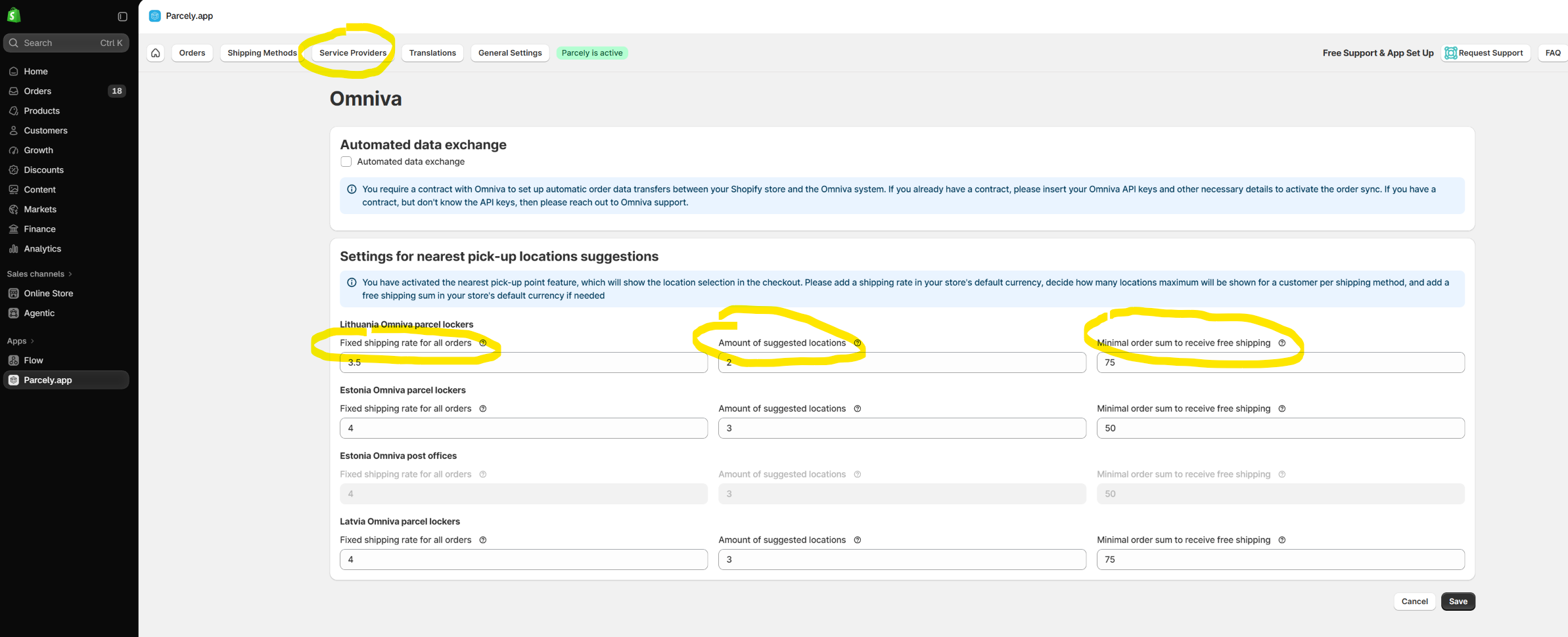
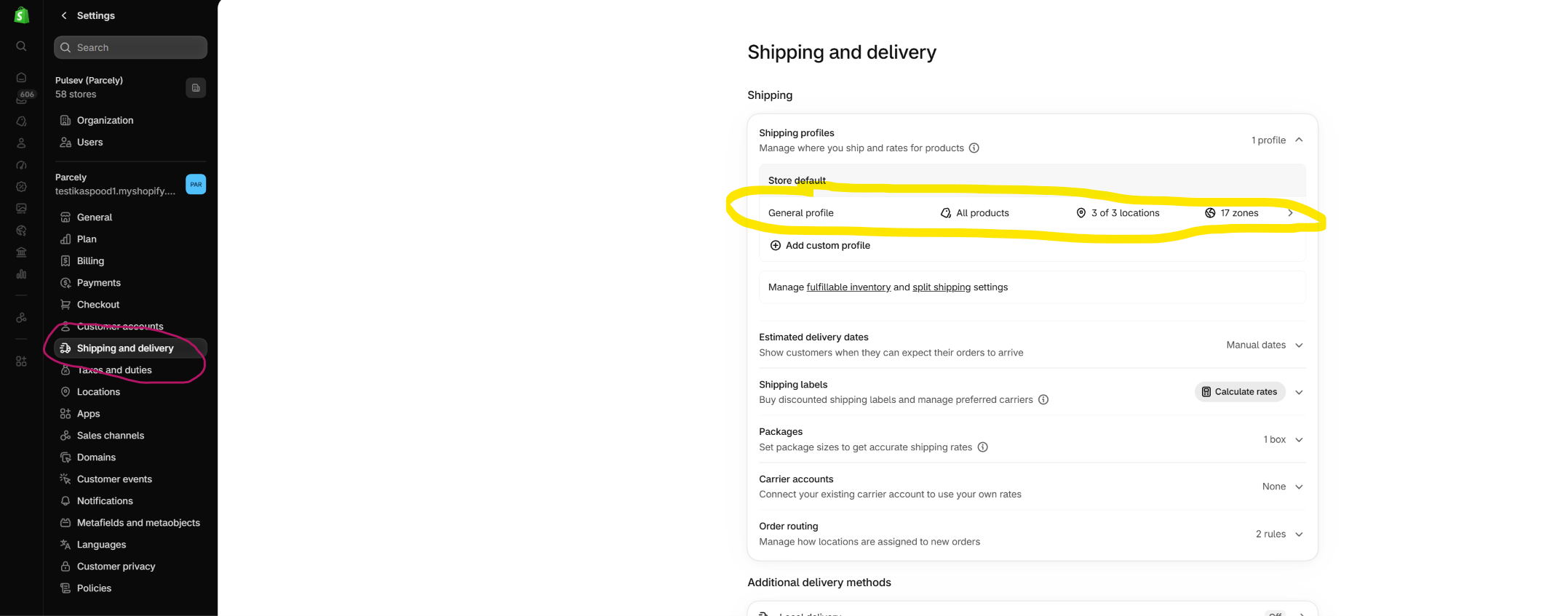
If you previously used Parcely cart page shipping selection, remove parcel locker shipping rates from the store Shipping Profile after adding them to the Parcely app. - If you offer any home delivery/courier shipping methods, then add these rates to the store shipping profile. You can find the store shipping profile in the store Settings→Shipping and delivery→General Profile.
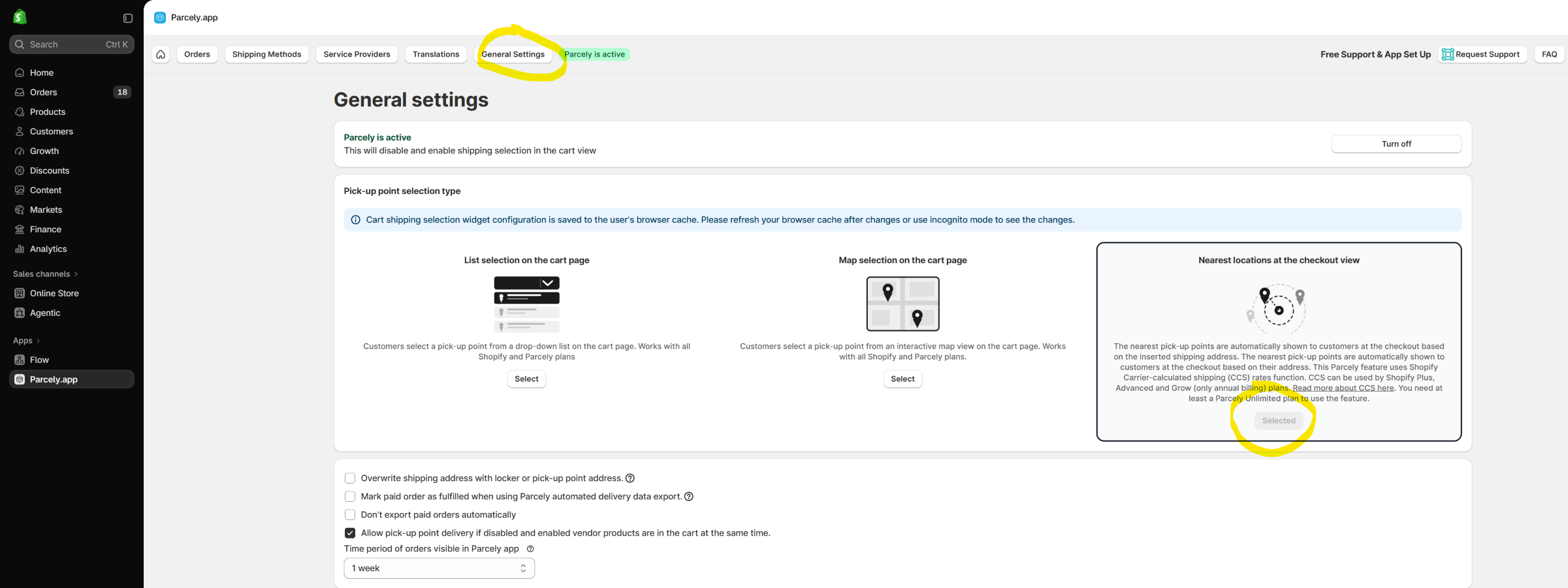
- Activate "Nearest locations at the checkout view" under the Parcely General Settings tab. Make sure your Shopify support CCS feature or customer doesn't see any parcel locker locations at checkout.
Feel free to reach out to us for a free setup, or at least to double-check your settings before customers start placing real orders.
Was this article helpful?
That’s Great!
Thank you for your feedback
Sorry! We couldn't be helpful
Thank you for your feedback
Feedback sent
We appreciate your effort and will try to fix the article