Nearest parcel locker selection to the client's shipping address at checkout.
Pros and cons:
+ Parcel locker selection is at checkout and it works with all native Shopify features.
+ You can use the theme drawer cart or apps that add drawer cart features.
+ Buttons on a product page may direct clients directly to the checkout.
+ Works with headless frontends like Hydrogen and Lovable.
+ The selected locker data saves to the Shopify order and generates a shipping label.
- Needs Shopify CCS feature to work, which means that you have to be using at minimum the Shopify Grow yearly plan. Read more about Shopify CCS here.
- Included only in the Parcely Unlimited plan.
- Client will see only the closest parcel locker locations to the inserted shipping address. You can't show a map or the full dropdown list at checkout like on the cart page.
If you want to show parcel locker shipping selection on the cart page instead, then follow this guide.
Step-by-step guide to set the nearest parcel locker selection in the checkout
Make sure your Shopify store has the mandatory CCS feature enabled. You need at least a Shopify Grow Yearly plan for CCS to be active by default. You can also ask Shopify Support to activate CCS on the Grow Monthly plan for an extra fee. Read more about CCS here.
If you have the Shopify Basic plan and don't want to start using Grow, then please follow the Cart page shipping selection steps.
- Install the app in your store from the Shopify App Store: https://apps.shopify.com/parcelyapp
- Select a Parcely app Unlimited plan.
- Select all needed shipping methods (you can select/change them later) and click Approve charge.
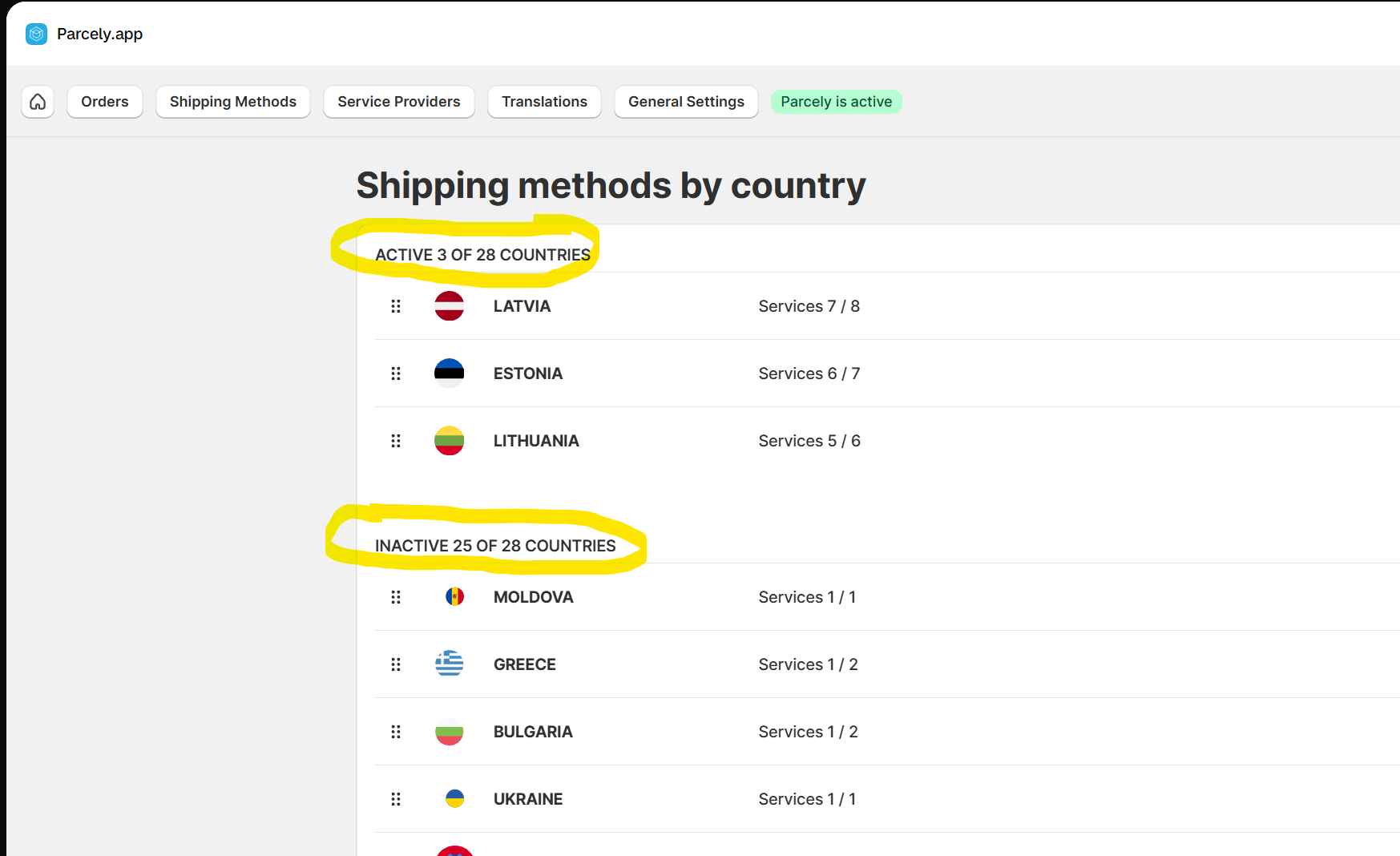
- Make sure the needed shipping methods and countries are activated under the Shipping Methods tab.
- Add parcel locker shipping rates to each shipping provider in the Parcely app under the Service Providers tab.
- Add a fixed shipping rate per country for each shipping method
- Select how many nearest locations you would like to show to the customer in the checkout for this shipping method.
- Add a free shipping condition/order sum if needed.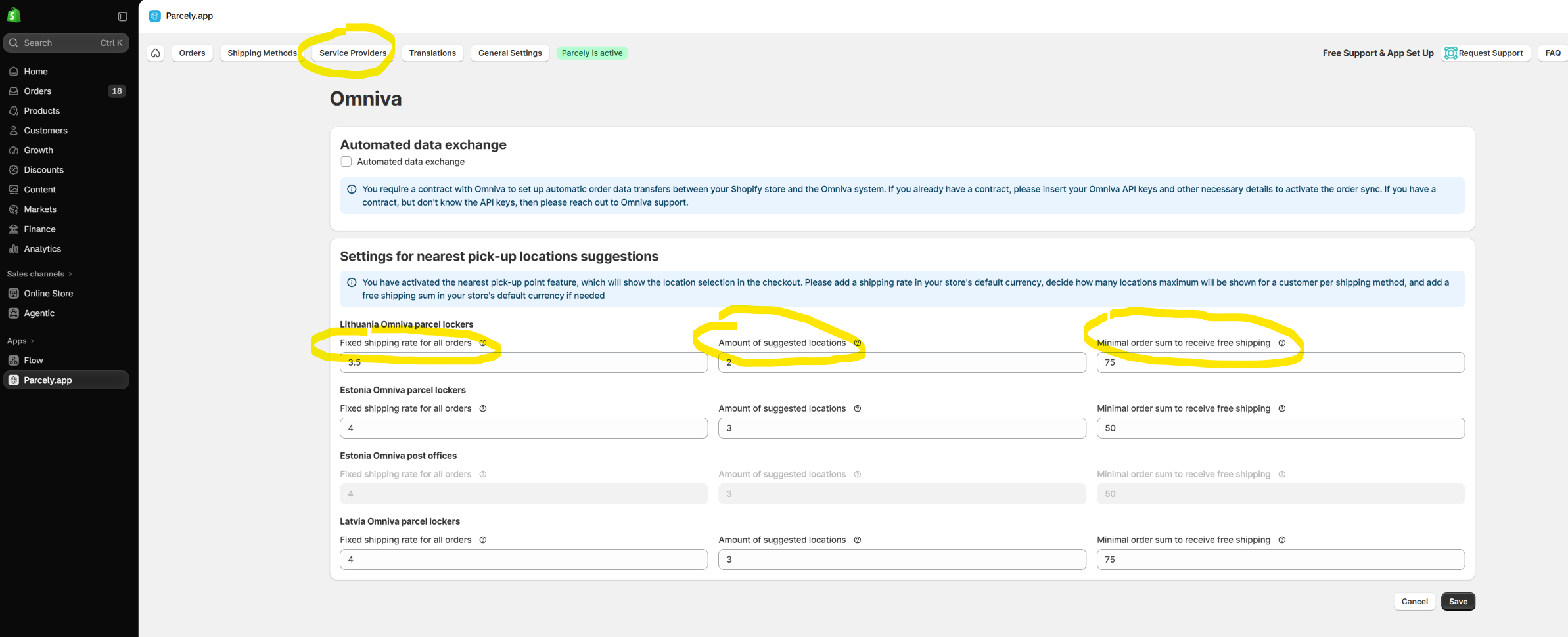
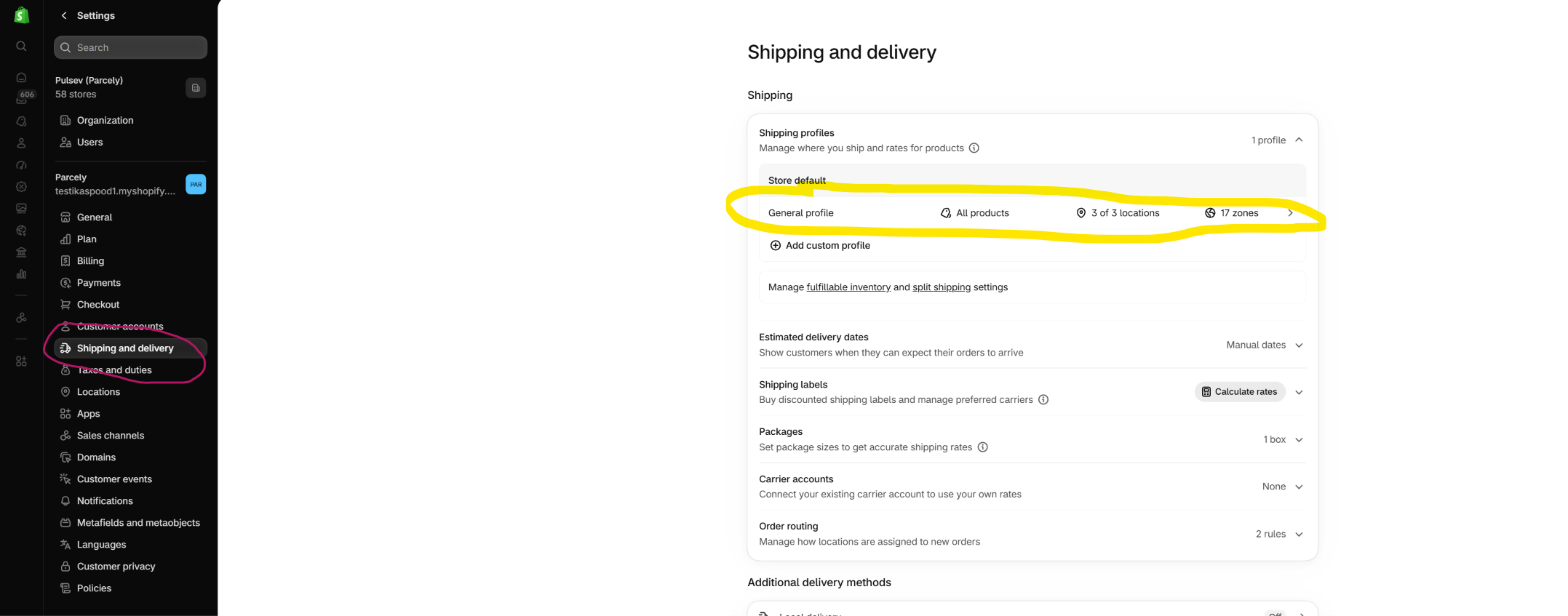
If you previously used Parcely cart page shipping selection, remove parcel locker shipping rates from the store Shipping Profile after adding them to the Parcely app. - If you offer any home delivery/courier shipping methods, then add these rates to the store shipping profile. You can find the store shipping profile in the store Settings→Shipping and delivery→General Profile.
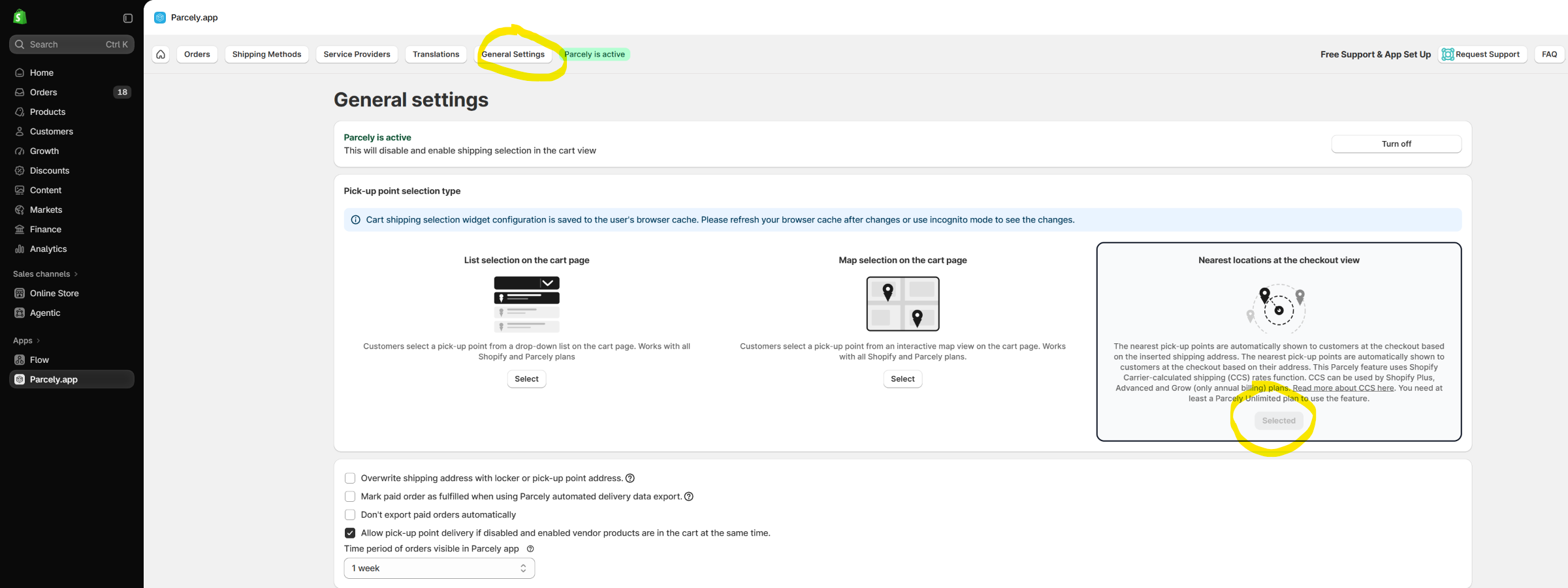
- Activate "Nearest locations at the checkout view" under the Parcely General Settings tab. Make sure your Shopify support CCS feature or customer doesn't see any parcel locker locations at checkout.
Feel free to reach out to us for a free setup, or at least to double-check your settings before customers start placing real orders.
Was this article helpful?
That’s Great!
Thank you for your feedback
Sorry! We couldn't be helpful
Thank you for your feedback
Feedback sent
We appreciate your effort and will try to fix the article